
You’ve set up your vendors correctly. You’ve collected W-9s. But if your expense accounts aren’t mapped to the right 1099 boxes, your year-end reports will be wrong.
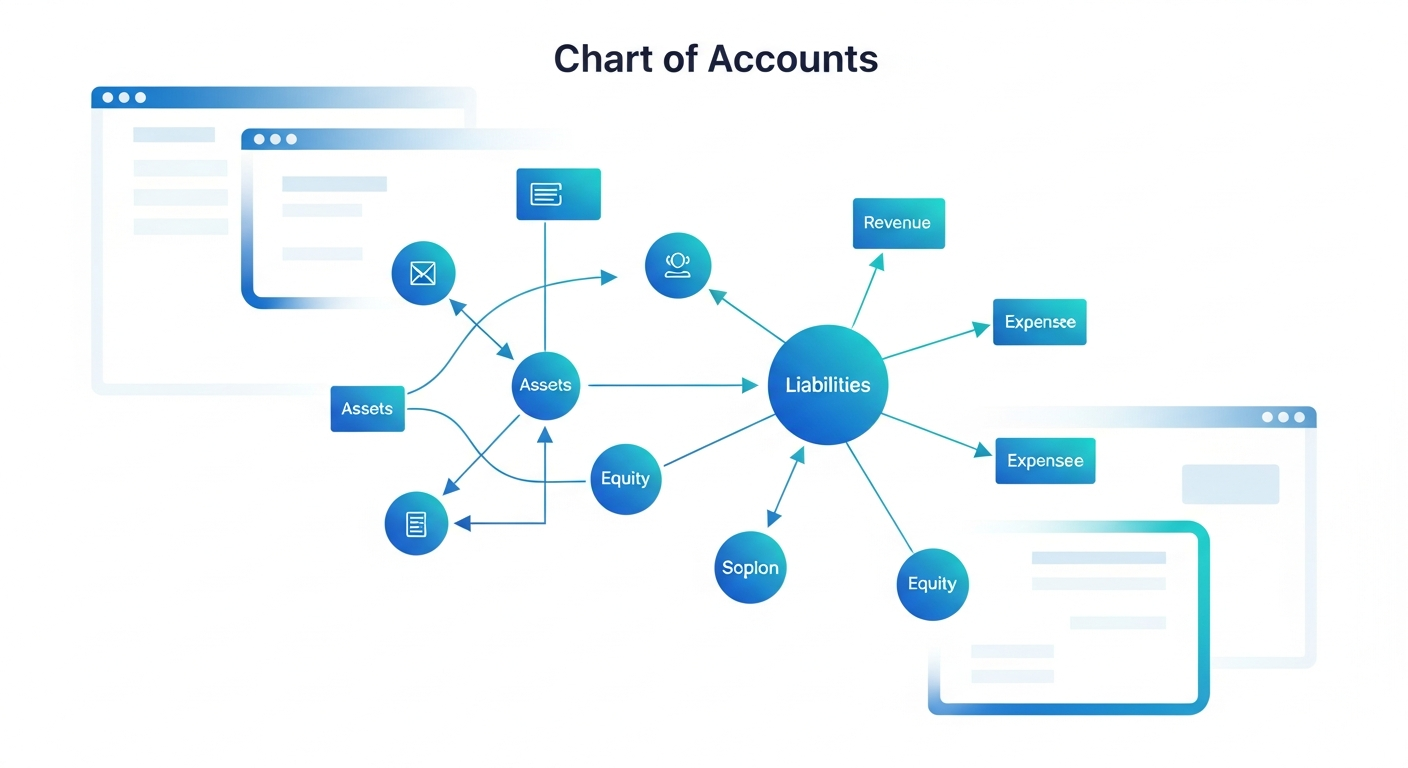
Account mapping is the bridge between your bookkeeping and your 1099s. Get it right, and QuickBooks does the heavy lifting. Get it wrong, and you’ll spend January manually calculating contractor totals.
This Post Is Part of the Tax Ready Bookkeeping 1099 Series
Posts 1-6 covered: Introduction, Vendor Setup, W-9 Classification, NEC vs MISC, Setup vs Corrections, and our 9-Step Policy.
What Is 1099 Account Mapping?
When you run the 1099 wizard in QuickBooks Online, it needs to know which payments should appear on which 1099 forms. Account mapping tells QuickBooks:
- Which expense accounts contain 1099-reportable payments
- Which form and box those payments should appear on
Step-by-Step: Mapping Your Accounts
Step 1: Navigate to 1099 Settings
- Go to Taxes → 1099 filings
- Click Prepare 1099s
- Select the tax year
- Navigate to the Categorize payments or Map accounts step
Step 2: Select Your Expense Accounts
QuickBooks shows a list of expense accounts. Check the ones you use for contractor and vendor payments:
- ☐ Contract Labor
- ☐ Professional Services / Fees
- ☐ Subcontractors
- ☐ Consulting
- ☐ Rent Expense
- ☐ Legal Fees
Step 3: Assign Each Account to a 1099 Box
| Account | Map To |
|---|---|
| Contract Labor | 1099-NEC Box 1 |
| Professional Services | 1099-NEC Box 1 |
| Subcontractors | 1099-NEC Box 1 |
| Rent Expense | 1099-MISC Box 1 |
| Royalties | 1099-MISC Box 2 |
Accounts You Should NOT Map
Not everything is 1099-reportable. Leave these accounts unmapped:
- Reimbursements – Not compensation, not reportable
- Materials and supplies – Goods, not services
- Owner draws/distributions – Not 1099-NEC
- Employee payroll – Goes on W-2, not 1099
- Utility payments – Paid to corporations, usually excluded
Verifying Your Mapping
After mapping, run the 1099 Transaction Detail report:
- Go to Reports
- Search for “1099” and select 1099 Transaction Detail
- Filter by the tax year
- Review each vendor’s transactions
Ask yourself:
- Do the totals match what I expect for each contractor?
- Are there vendors showing that shouldn’t be (corporations)?
- Are there missing vendors who should appear?
Common Mapping Mistakes
- Mapping reimbursement accounts – Inflates 1099 totals
- Missing a contractor account – Contractors don’t appear in wizard
- Using wrong form – Services on MISC instead of NEC
- Not reviewing after mapping – Errors go unnoticed until filing
Key Takeaways
- Map expense accounts to the correct 1099 form and box
- Don’t map reimbursements or material purchases
- Run the 1099 Transaction Detail report to verify totals
- Review before filing – mapping determines what QuickBooks reports
Next in the series: Deadlines, penalties, and a year-round compliance calendar to keep you on track.
Are You Ready to Take Control of Your Business Finances?
Hidden QuickBooks issues can quietly erode profits, distort decision-making, and create headaches when tax time arrives. At ProjectBits Consulting, our Tax Ready Bookkeeping service gives you expert-level oversight from certified QuickBooks ProAdvisors who know exactly where to look—and how to fix what they find. We help uncover problems early, restore confidence in your financial data, and ensure your books stay accurate and tax-ready all year long.
Don’t wait until tax season to find costly surprises. Get proactive with a professional bookkeeping assessment that identifies gaps before they become risks. Apply now for your Tax Ready Assessment or explore the practical strategies in our book, Ready to Take Control of Your Business Finances, to learn how to keep your numbers working for you.