

The AI Governance & Security Series
★ Start here (the story), then read Parts 1–7 in order.
| # | Post | Read |
|---|---|---|
| ★ | AI Sorcery: Don’t Be the Apprentice | Read |
| 1 | The Ledger Question | Read |
| 2 | Can You Prove What Your AI Did to the Books Last Night? | Read |
| 3 | The Boundary a Local AI Model Won’t Give You | Read |
| 4 | What Quantum Computing Does to Your AI Audit Trail | Read |
| 5 | Something You Know, Have, or Are | Read |
| 6 | Lock the Front Door: Secure Your QuickBooks Login (you are here) | — |
| 7 | The Back Door: Who Can Reach Into Your Books | Read |
Lock the Front Door: How to Actually Secure Your QuickBooks Login
Part of the ProjectBits AI Governance & Security series. If The Governed AI Financial Trust Architecture was about proving what happens inside your books, this one is about the front door — who gets to open them at all.
The weakest lock on the most valuable room
Your QuickBooks Online account is the most sensitive room in your business. It holds your revenue, your bank connections, your payroll, your customers’ details. And for most small businesses, the lock on that door is still a password and a text message.
That’s a problem, because both of those can be stolen without anyone touching your computer.
- A password can be guessed, reused from a site that got breached, or typed into a fake login page that looks exactly like Intuit’s.
- A text-message code can be intercepted by “SIM-swapping” — a scammer convinces your phone carrier to move your number to their phone, and the code lands with them.
The good news: QuickBooks now supports much stronger locks. They’re free, they take about ten minutes to set up, and once they’re on, the most common attacks simply stop working.
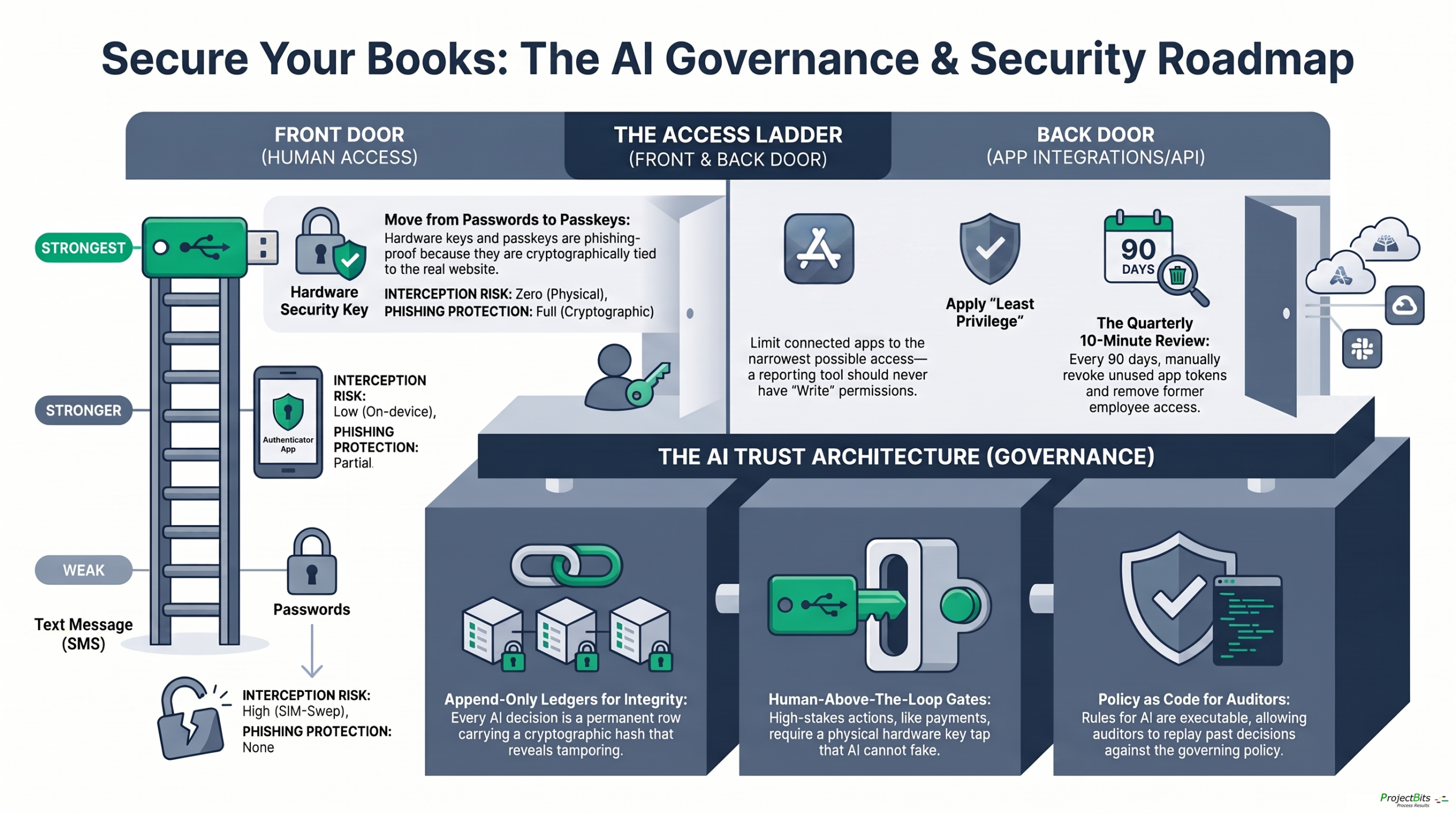
Here’s the ladder, weakest to strongest.
Rung 1 — Password only (don’t stop here)
A strong, unique password is the floor, not the ceiling. Use a password manager so every account gets its own long, random password. But a password alone means one breached site or one convincing fake email can hand over your books. Never rely on this by itself.
Rung 2 — Authenticator app (a real upgrade)
An authenticator app — Google Authenticator, Microsoft Authenticator, or Authy — generates a fresh six-digit code every 30 seconds, right on your phone. QuickBooks asks for that code after your password.
Why it beats text messages:
- The code is generated on your device — there’s no text message to intercept, and no phone number to hijack.
- It works offline, even with no signal.
This is a big step up, and if you do only one thing after reading this, turn this on.
Two honest limitations, so you know exactly what you’re getting:
- Because you still type the code in, a very convincing fake login page can trick you into typing it into the wrong place in real time.
- Modern authenticator apps (Microsoft Authenticator, Google Authenticator) now back up their codes to the cloud — to your Microsoft or Apple account — so you can restore them if you lose your phone. That’s genuinely useful; lost-phone lockout used to be the most common disaster. But it also means your second factor is now only as safe as the cloud account guarding its backup. Protect that account well, too.
Both of these are why there’s a higher rung.
How to set it up (about five minutes)
You’ll need two things: QuickBooks open on your computer, and a free authenticator app on your phone — we’ll use Microsoft Authenticator (Google Authenticator or Authy work the same way).
- On your computer, sign in to QuickBooks Online → click your profile icon → Manage your Intuit Account → Sign In & Security. Choose Authenticator app. A QR code appears on screen.
- On your phone, open Microsoft Authenticator → tap the + to add an account → choose Other account → this opens the camera.
- Point your phone at the QR code on your screen. QuickBooks now shows up in your app, generating a new 6-digit code every 30 seconds.
- Back on your computer, type in the current 6-digit code to confirm. That’s it.
Two things worth doing while you’re there: if the camera won’t scan, every setup screen offers a text code you can type in by hand instead. And save the backup codes QuickBooks gives you somewhere safe — that’s your spare key if you ever lose the phone.
From now on, signing in is your password plus the current code from your phone. It works even with no signal, and one app can hold all your logins — QuickBooks, email, your bank — in one place. (If you’d rather your codes not live in the cloud at all, most authenticator apps let you turn backup off in their settings — just know that then a lost phone means restoring each account by hand.)
Rung 3 — Passkeys and security keys (the phishing-proof lock)
This is the strongest option, and it’s the one worth aiming for.
A passkey is a special digital key that lives on your device — your phone, laptop, or a small hardware security key (like a YubiKey) you plug in or tap. When you sign in, you unlock it with your face, fingerprint, or a tap. You never type anything a scammer could steal.
Here’s the simple picture of how it works. When you create a passkey, your device makes a matched pair: a padlock and its one and only key. It hands the padlock to QuickBooks to keep, and holds onto the key — which never leaves your device. To let you in, QuickBooks snaps its padlock shut and asks your device to open it. Only your key can, and opening it is what your fingerprint or face tap does. QuickBooks never sees your key, so there’s nothing for a breach to leak and nothing for you to accidentally type into the wrong place.
The reason this is a fundamentally different kind of lock: a passkey is cryptographically tied to Intuit’s real website. If you land on a fake intuit-secure-login.com, the passkey simply refuses to work — your browser won’t hand it over to the wrong address. As we put it in the trust architecture piece: a tap can’t be phished, lifted from a password breach, or faked by a voice on the phone.
That’s not marketing. It’s how the underlying standard (called FIDO2/WebAuthn) is built — the same standard banks and Google and the U.S. government use for their most sensitive logins.
QuickBooks Online supports passkeys for signing in today. It’s built in, it’s free, and it’s the lock we recommend everyone move toward.
Phone passkey or hardware key? Use both, for different reasons
Both are passkeys built on the same phishing-proof standard, but they behave differently — and the difference matters:
| Phone / device passkey (Face ID, fingerprint) | Hardware security key (YubiKey and similar) | |
|---|---|---|
| Convenience | Highest — it’s already in your pocket | Slight extra step (plug in or tap) |
| Where it lives | On your phone or laptop; typically syncs through your Apple, Google, or Microsoft account so it’s on all your devices | On the physical key only — its secret is generated on the key and cannot be exported, copied, or backed up anywhere |
| If your phone dies, is lost, or is stolen | You may be locked out until you recover the device or account | Unaffected — the key is separate from your phone |
| Portable across computers | Tied to your device ecosystem | Works on any computer you plug it into |
| Best for | Your everyday, fast sign-in | Your unbreakable backup, and high-stakes access |
The practical takeaway: a phone passkey is the convenient daily lock; a hardware key is the one that saves you on your worst day — the phone that fell in the lake, the account you got locked out of. That’s why our recommendation below is to set up a phone passkey and two hardware keys. They’re not competing choices; they cover for each other.
There’s also a deeper reason a hardware key sits at the top. Recall that authenticator-app codes now get backed up to the cloud — the secret can be copied to another device. A hardware key’s secret works the opposite way: it’s created on the key and can never leave it. There’s nothing in a cloud to steal, because there’s no copy anywhere. For the access that matters most, “cannot be copied” beats “conveniently restorable.”
What we recommend you actually do
- Turn on an authenticator app today. In QuickBooks: Manage your Intuit Account → Sign In & Security → Two-step verification. This is the ten-minute win.
- Add a passkey for your everyday device (Face ID / fingerprint). Same Sign In & Security screen.
- Buy two hardware security keys if your books are your livelihood. Register both. Carry one, lock the other in a drawer or safe. If you lose the first, the second gets you back in — no lockout, no support ticket.
- Keep a backup method registered so you’re never one lost phone away from being locked out of your own finances.
- Drop text-message codes to last resort. Use them only as an emergency fallback, never as your only second factor.
Why this matters more when AI is in the loop
If you’re using automated tools or AI agents anywhere near your books — reconciliation, forecasting, invoice handling — the front door matters even more. Every one of those tools acts on behalf of someone’s login. Securing the human logins is the foundation the whole governance story sits on. You can have the best audit trail in the world inside your books; it means nothing if someone can walk in the front door wearing your face.
Lock the front door first. Then we can talk about everything that happens inside — which is exactly what the next post in this series covers: who, and what apps, are allowed to reach into your books through the back door, and how you stay in control of it.
ProjectBits helps small businesses run governed, auditable financial operations — books you can trust and prove. Get in touch.
Are You Ready to Take Control of Your Business Finances?
Most back-office problems don’t live where owners look for them first — not in the tool, not in the person, but in the handoffs and decisions nobody ever made explicit. At ProjectBits Consulting, Tax Ready Bookkeeping starts with a structured diagnostic: we put a number on each part of your books, name what’s actually plateaued, and show you the receipts before recommending any work. You leave with a clear picture you can act on — whether you work with us or not.
The diagnostic precedes the remedy. The Tax Ready Assessment is the front door — a no-obligation walk through where your books actually stand this month. Apply now for your Tax Ready Assessment, or explore the thinking behind it in our book, Ready to Take Control of Your Business Finances.